
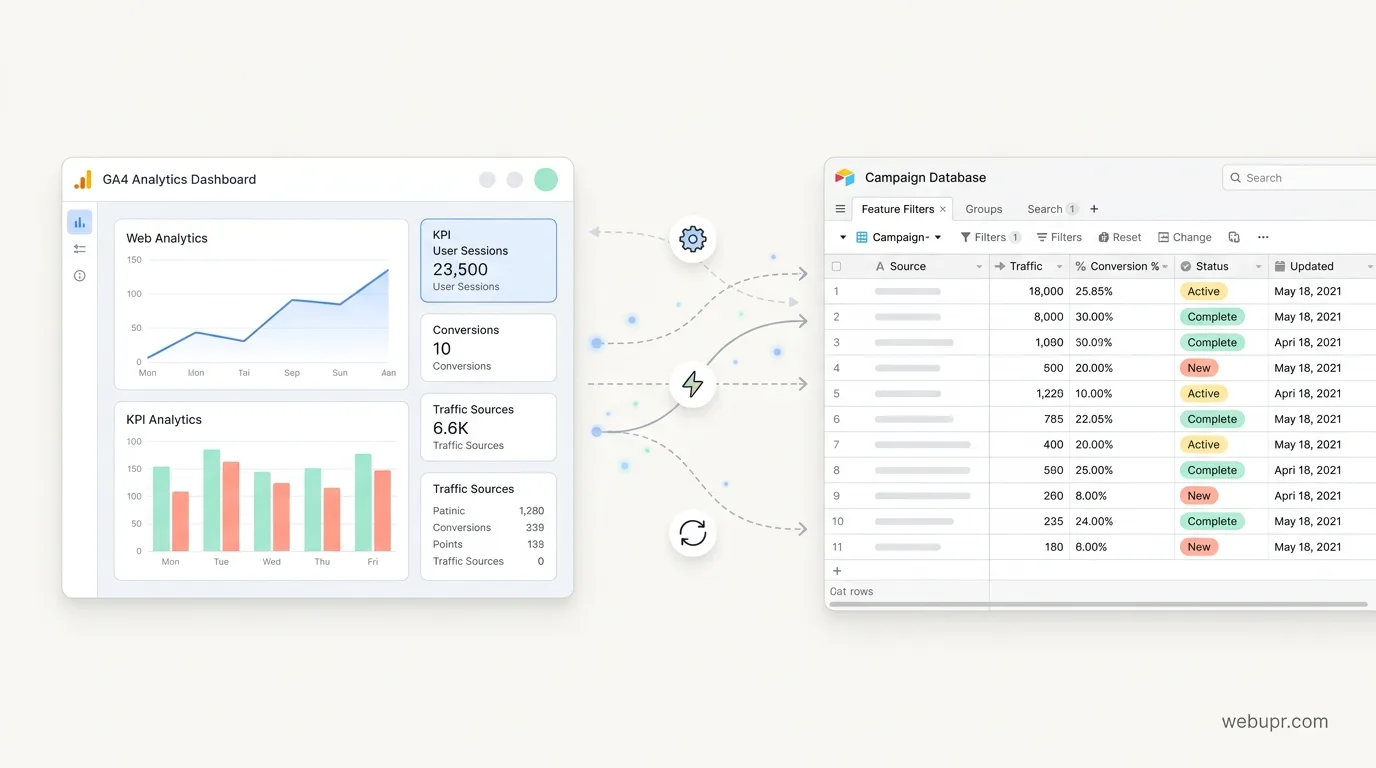
Yes, You Can Connect GA4 to Airtable, but Not in One Click
Lots of people run their business in Airtable. It holds leads, content calendars, client lists, and project trackers. Google Analytics 4 holds the story of how people find and use the website. Putting those two side by side is a sensible goal, but there is no simple built-in button that links them.
The good news is that the connection is achievable. You just need to choose the route that fits your skills and how often you need fresh data. This guide explains the options, what each one involves, and where things tend to go wrong.
Why Connect Them at All
The reason is usually practical. You might want to see which blog posts bring visitors and then match them against the leads in Airtable. You might want a weekly summary of traffic next to your content plan. Or you might want to flag pages that suddenly stop getting visits so someone can check them.
Before you build anything, write down the question you want answered. The question decides which connection method is worth the effort.
Option One: Use the GA4 Data API With an Automation Tool
GA4 offers a reporting API that lets other tools request traffic data on a schedule. Automation platforms such as Make or Zapier can call that API, pull the numbers you need, and write them into an Airtable table.
This route is flexible and works well for regular summaries, such as weekly page views or top landing pages. It does need setup. You will connect a Google account, choose the property and metrics, and map the results to Airtable fields. The official reference for the GA4 Data API is useful when you want to see what data is available: Google Analytics Data API documentation.
Start small. Pull one or two metrics first, confirm the numbers match what you see in the GA4 interface, then add more.
Option Two: Export to BigQuery, Then Send Summaries to Airtable
GA4 can export raw event data to BigQuery, Google Cloud data warehouse. This is more powerful, but it is heavier than most small businesses need. BigQuery also has its own costs and a learning curve.
This route makes sense if you want detailed event level analysis, not just a few headline numbers. Once the data is in BigQuery, you can write a query for the summary you want and then use an automation tool to send the result to Airtable.
If you are weighing up cloud costs and setup, our guide on hosting in Google Cloud explains the trade-offs of working inside Google Cloud.
Option Three: Go Through Google Sheets
A practical middle step is to pull GA4 data into a Google Sheet and then connect that sheet to Airtable. Some reporting add-ons can schedule GA4 pulls into a sheet, and Airtable can import or sync from a sheet.
This is often the easiest route for non-developers. The downside is an extra step in the chain, so check that the sheet updates reliably before you depend on it.
Option Four: A Simple Script
If you are comfortable with code, a small script can call the GA4 Data API on a schedule and write the results to Airtable through its API. This gives you full control, but it also means you own the maintenance. When the API changes or a token expires, someone has to fix it.
Only choose this route if someone on the team can look after it long term.
Keep Your Data Honest
Whichever route you pick, compare the numbers against the GA4 interface before you trust them. Check the date range, the property, and the metric names. Small differences can come from how each tool counts sessions, users, and time zones.
Set the time zone in the automation to match your GA4 property. A mismatch will quietly shift numbers by a day and make trends look wrong.
Plan for Permissions and Privacy
Connecting analytics to a shared Airtable base means more people can see traffic data. Decide who needs access before you build. Use a restricted account for the automation rather than a personal login where possible, and remove access when someone leaves the team.
Keep an eye on the data you store. Summaries like page views and top pages are usually fine. Avoid pulling anything that identifies individual visitors unless you have a clear reason and a privacy approach to match.
Common Problems and How to Avoid Them
Authentication is the most common headache. Tokens expire, permissions change, and a connection that worked last month can stop without warning. Check the automation history regularly.
Field mapping is the next trap. If a metric is renamed or a field type changes in Airtable, the sync can fail silently. Build a simple check that flags empty rows.
Finally, watch the volume. Pulling too much detail too often can hit API limits and clutter your base. Summaries on a daily or weekly schedule are usually enough.
Making It Useful, Not Just Connected
A connected base is only valuable if someone acts on it. Build a view that shows the pages with the most visits next to the content status in Airtable. Flag posts that have no traffic after a set period. Use the summary in your weekly review so the data changes a decision.
If you are also setting up conversion tracking, our article on moving from Universal Analytics to GA4 covers the setup steps that make GA4 data reliable before you connect it anywhere else.
A Simple Way to Start
Pick one question. Choose the easiest route that answers it. Pull two or three metrics, compare them with the GA4 interface, and run the sync for a couple of weeks. Once it is stable, add more fields or make the view richer.
Starting small keeps the project from turning into a maintenance headache.
The Bottom Line
You can connect GA4 to Airtable, but it takes a deliberate setup rather than a single click. The Data API with an automation tool is the most practical option for most small teams. BigQuery is powerful but heavier, Google Sheets is a simple middle step, and a script gives full control if you can maintain it.
Choose the route that matches your skills, check the numbers before you rely on them, and keep the connection simple enough that it keeps working.
To explore Airtable itself and how its integrations work, visit the official Airtable website.