Universal Analytics Is Gone, So the Move to GA4 Is Not Optional
If your website still reports to an old Universal Analytics property, you have probably noticed that the data stopped coming in. Google stopped processing data for Universal Analytics in mid 2023, and the old properties no longer collect new information. Anyone still relying on those reports is looking at a history that does not grow anymore.
GA4 is now the default. It works differently, it asks you to think about events instead of pageviews and sessions, and it does not carry your old data across automatically. That last point is the part that catches most people off guard, so this guide starts there.
What a GA4 Migration Really Involves
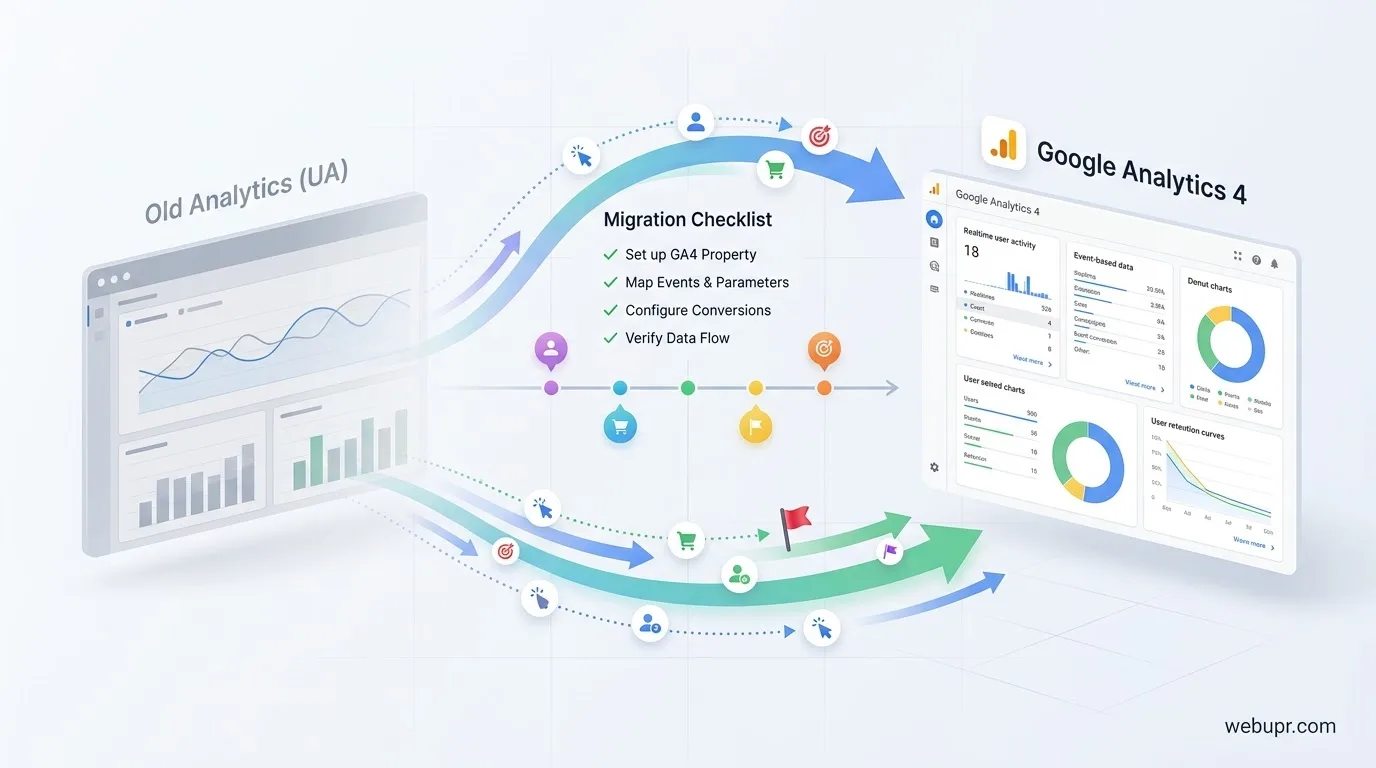
A migration is not a single click. It is a set of steps that gets GA4 collecting the data you need, the same way your old setup did. You create a GA4 property, connect it to your website, check that events are arriving, and rebuild the conversions and reports that matter to your business.
Think of it as rebuilding your measurement, not copying your old one. Some things come across easily. Others need thought, because GA4 measures the same behaviour in a different way.
Historical Data Does Not Move Over
This is the most important thing to understand before you start. Universal Analytics data does not transfer into GA4. Your old reports stay in the old property, and GA4 starts collecting from the day you set it up.
Export your key reports from Universal Analytics now if you need them for comparison later. Save monthly traffic, top pages, and conversion numbers as spreadsheets or PDFs. That history is yours to keep, and it will be useful when you want to compare year on year.
Step One: Create a GA4 Property
In Google Analytics, open the admin area and create a new GA4 property. Give it a clear name that matches the website it tracks. Set your time zone and currency carefully, because changing them later affects how reports are calculated.
Then add a web data stream using your website address. Google will show you a measurement ID that starts with G. You will need that ID for the next step.
Step Two: Install the Tag Properly
The measurement ID has to be on every page of your site. The simplest route on many websites is to install the Google tag directly from your site builder or theme settings. If you use Google Tag Manager, add the GA4 configuration tag there instead and publish the container.
Avoid installing the tag twice. Duplicate tags can inflate your numbers and make the data hard to trust. Check the page source or use a tag debugging tool to confirm that only one tag is firing.
Step Three: Check That Data Is Arriving
Open the Realtime report in GA4 and visit your site in another browser window. You should see yourself appear within a minute or two. Click around, visit a few pages, and try a form or a button if you have one.
If nothing appears, the tag is missing or blocked. Check for ad blockers, consent banners that stop tracking before a visitor agrees, and any filters that might hide internal traffic during testing.
Step Four: Rebuild Your Events
Universal Analytics measured pageviews, sessions, and a set of event categories you may have set up by hand. GA4 measures almost everything as an event. Enhanced measurement covers basic actions such as page views, scrolls, outbound clicks, and file downloads, so many sites get a useful baseline without extra work.
For anything specific to your business, create custom events. A contact form submission, a purchase, a booking, or a quote request usually needs its own event so you can track it accurately.
Step Five: Turn Key Events Into Conversions
In Universal Analytics you may have used goals. In GA4 the equivalent is marking an event as a key event, which used to be called a conversion. Go through your old goal list and mark the matching events as key events.
Be selective. Marking every event as a key event makes your reports noisy and your bidding data less useful. Pick the actions that truly matter to your business, such as enquiries, sales, or signups.
If you run ads, our guide on importing custom conversions from Google Ads to GA4 explains how to bring those conversions across so both platforms agree.
Step Six: Set Data Retention
GA4 keeps event level data for a limited time. The default setting for user level data is short, and many people never change it. Open the data settings in admin and extend the retention period to the longest option available for your account type, so you can analyse behaviour over a longer window.
Do this early. Data that is past the retention limit cannot be recovered.
Step Seven: Link Your Other Tools
If you use Google Ads, link it to your GA4 property so conversions and audiences flow between them. If you use Search Console, link that too, so you can see search queries alongside on-site behaviour. These links take a few minutes and save a lot of manual comparison later.
Step Eight: Run Both Setups for a While
Keep the old property running in read-only mode for reference, and compare the two for a few weeks where they overlap. Numbers will not match exactly. Differences come from how each system counts sessions, users, and bounces. What you are checking is that the trends point the same way and that your key events are firing.
Once you are confident, stop relying on the old numbers and make GA4 your source of truth.
Common Mistakes to Avoid
Many migrations go wrong for the same few reasons. People install the tag twice. They forget to set data retention. They mark every event as a key event. They expect old history to appear automatically. They assume session counts will match the old reports exactly.
Write these down as a short checklist and work through it before you call the migration finished.
Where Hosting Fits In
Your analytics tag only works if your site loads properly and the pages that hold it are reachable. If you notice gaps in data, check that the site is up and that your hosting is not blocking scripts or slowing pages down. Our article on choosing a basic web host covers the checks that matter for a stable site.
A Simple Migration Checklist
Export your old reports. Create the GA4 property and data stream. Install the tag once on every page. Confirm data in Realtime. Set up custom events for your key actions. Mark the important events as key events. Extend data retention. Link Google Ads and Search Console. Compare both setups for a few weeks, then switch over.
Work through it in order and the migration is much less stressful than it first looks.
The Bottom Line
Moving to GA4 means rebuilding your measurement around events and key events, accepting that old history stays behind, and setting things up carefully from the start. The effort is worth it, because GA4 gives you a clearer view of how people use your site, and it is the only version that keeps collecting data today.
For official guidance on the latest GA4 features and settings, visit the Google Analytics Help Centre.