What People Mean When They Search for Blooket Hosting
Blooket is a game-based learning platform. Teachers and group leaders use it to run quiz games where students answer questions, earn points, and compete on a leaderboard. People searching for Blooket hosting usually want one of two things: a smooth live game in a classroom, or a clear way to run their own session without things falling apart halfway through.
That is a different job from renting a game server. There is no server for you to rent, configure, and maintain. The platform runs the game, and your job is to make sure the session starts on time and stays stable for everyone in the room.
This guide covers how to prepare a hosted Blooket session, what usually goes wrong, and how to keep things running when a whole class joins at once.
How a Blooket Game Session Works
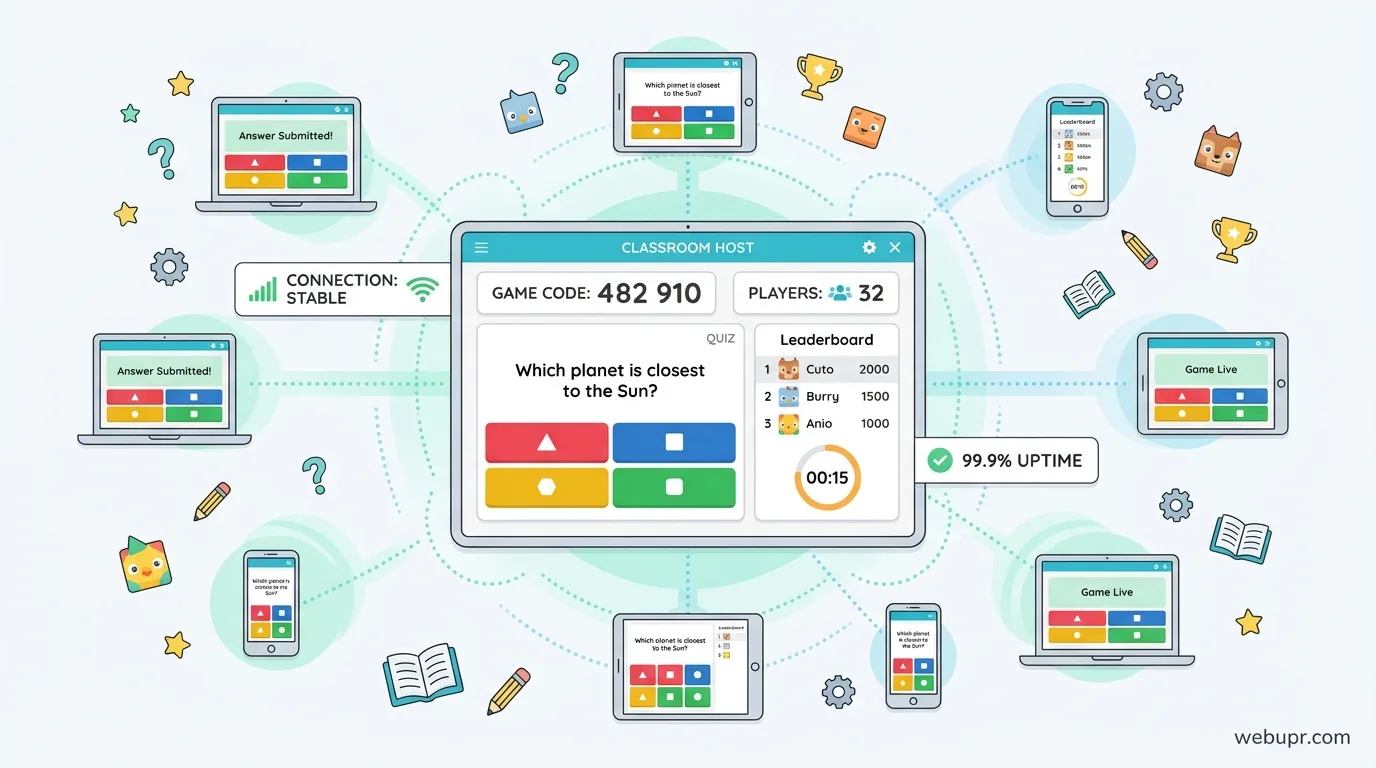
The host starts a game from their account and chooses a game mode and question set. Students join using a code shown on the host screen, usually from their own device. Once everyone is in, the host starts the round and the game runs in real time.
Understanding this flow helps you plan. The critical parts are the host device, the student connections, and the shared network the room uses. If any of those are weak, the session feels slow or drops players.
You can explore the platform and its current game modes on the official Blooket website. Features change over time, so check there for the latest options.
Prepare the Host Device
Use a device that is fully charged or plugged in, with a clean browser and no heavy programs running in the background. Close extra tabs that use video or large downloads. A laptop with a stable connection is usually more reliable than an older tablet with limited memory.
Log in before class starts. Open the game dashboard, check your question set, and run a quick test with one or two devices to make sure everything loads.
Test the Room Network
A class of thirty students joining at the same moment puts real pressure on a Wi-Fi network. Many schools have access points that work well for normal browsing but slow down when dozens of devices connect at once.
If you can, test the room a few minutes before the lesson. Ask a few students to join from different parts of the room and watch for delays. If the connection is patchy, move the host device closer to the access point or ask your IT team to check the load.
Keep Question Sets Light
Large image files and heavy embedded media slow everyone down. Keep questions text based where you can, and compress any images before you upload them. Shorter questions also keep the pace up, which is better for attention anyway.
Preview the set on the host device before class so you know how each question looks and how long it takes to load.
Set Expectations Before the Game Starts
Tell students how to join, how long the game will take, and what to do if they lose connection. Ask them to refresh the page once if they get stuck, and to raise a hand if the problem continues. A short briefing prevents a lot of confusion when the first round starts.
Agree on simple rules for chat and behaviour too. A calm game is more fun for everyone and easier for the host to manage.
What Usually Goes Wrong
Most problems come from a few predictable places. The host device runs out of battery or memory. The Wi-Fi slows down as more people join. A student uses an outdated browser or a device with a small screen that makes answers hard to tap. Someone forgets the join code or types it wrong.
Keeping a backup plan helps. Have a second device ready, know how to restart the game if needed, and keep a printed or projected copy of the join code visible.
Using Reports to Improve Future Sessions
After the game, look at which questions students found hardest. If most of the room missed a question, that is useful feedback for your lesson, not just a score. Adjust the next set based on what you learned.
Keeping a simple note about what worked and what did not will make each future session smoother.
When Hosting Your Own Game Setup Makes Sense
Some teachers and community leaders want more control than a standard classroom session gives them. If you are running regular events for a large group, you may need a stronger network, a dedicated device for hosting, and a clear schedule. In that case, a managed setup from a reliable provider is worth considering.
If you are building a separate website or game-related project and need dependable hosting, our guide on Stellar web hosting explains what to check before you sign up for a basic plan.
Other Game Hosting Topics Worth Reading
If your interest is in running multiplayer game servers instead of classroom sessions, these guides may help. Our article on cheap Minecraft server hosting covers how budget game servers behave under load, and our Palworld server hosting guide explains memory, backups, and group rules.
A Simple Checklist Before Your Next Game
Log in early and test the question set. Charge or plug in the host device. Close unnecessary programs and tabs. Check the Wi-Fi with a few devices. Share the join code clearly. Keep a backup device ready. Brief students on how to join and what to do if they get stuck.
Do these things and your next session will spend its time on learning and fun instead of troubleshooting.
The Bottom Line
Blooket hosting is really about running a smooth live session. Prepare your device, test the room network, keep question sets light, and set clear expectations. The platform does the heavy lifting, and your preparation makes the difference between a frustrating game and a memorable one.