Introduction
Installing WordPress on cPanel is one of the most common tasks for website owners. Whether you’re setting up a blog, business website, or online store, cPanel makes the installation process straightforward and beginner-friendly.
In this complete guide, we’ll walk you through every step of installing WordPress on cPanel, from preparing your hosting account to logging into your new WordPress dashboard. No technical experience required.
Prerequisites Before Installing WordPress
What You’ll Need
- A cPanel hosting account (from your web hosting provider)
- A domain name registered and pointed to your hosting
- FTP/SFTP access (usually included with hosting)
- A valid email address for your WordPress admin account
- Approximately 15-20 minutes of your time
Verify Your Hosting Requirements
Before starting, confirm your hosting meets WordPress minimum requirements:
- PHP version 7.4 or higher (check with your host or in cPanel)
- MySQL 5.7+ or MariaDB 10.3+ database support
- At least 128MB of RAM allocated
- HTTPS (SSL certificate) support
Log into your cPanel control panel to verify these are available.
Method 1: Install WordPress Using Softaculous (Easiest)
Softaculous is an auto-installer tool included with most cPanel hosting. This is the fastest method for beginners.
Step 1: Access Softaculous
Log into cPanel and look for “Softaculous” or “Auto Installers” in the left sidebar. Click on it. You’ll see a list of available applications.
Step 2: Find and Click WordPress
Search for “WordPress” in the Softaculous interface. Click on the WordPress icon or title.
Step 3: Click Install Now
On the WordPress information page, click the “Install Now” button in the top-right corner.
Step 4: Configure Installation Settings
You’ll see an installation form with several options:
- Choose Installation URL: Select your domain from the dropdown. Most users choose the root domain (yourdomain.com). If installing in a subfolder, select that option.
- Database Name: Leave as default or create a custom name. Softaculous handles this automatically.
- Site Name: Enter your website title (e.g., “My Awesome Blog”).
- Site Description: Brief description of your website.
- Admin Username: Create a unique username for your WordPress admin account (not “admin”).
- Admin Password: Generate a strong password or create your own. Store this securely.
- Admin Email: Enter your email address. WordPress will use this for notifications.
Step 5: Advanced Settings (Optional)
Scroll down to see optional settings:
- Backup Location: Choose where backups are stored.
- Disable Cron: Leave unchecked unless specifically advised by your host.
- Plugins to Install: Some installers offer pre-selected plugins. Review and select based on your needs.
Step 6: Complete Installation
Click “Install” at the bottom of the form. Softaculous will download WordPress, create your database, and configure everything automatically. This typically takes 2-5 minutes.
Step 7: Access Your WordPress Dashboard
Once installation completes, you’ll see a success message with your WordPress URL. Click the link or navigate to yoursite.com/wp-admin to log in with your admin credentials.
Method 2: Manual WordPress Installation (Advanced)
If Softaculous isn’t available on your hosting, you can manually install WordPress.
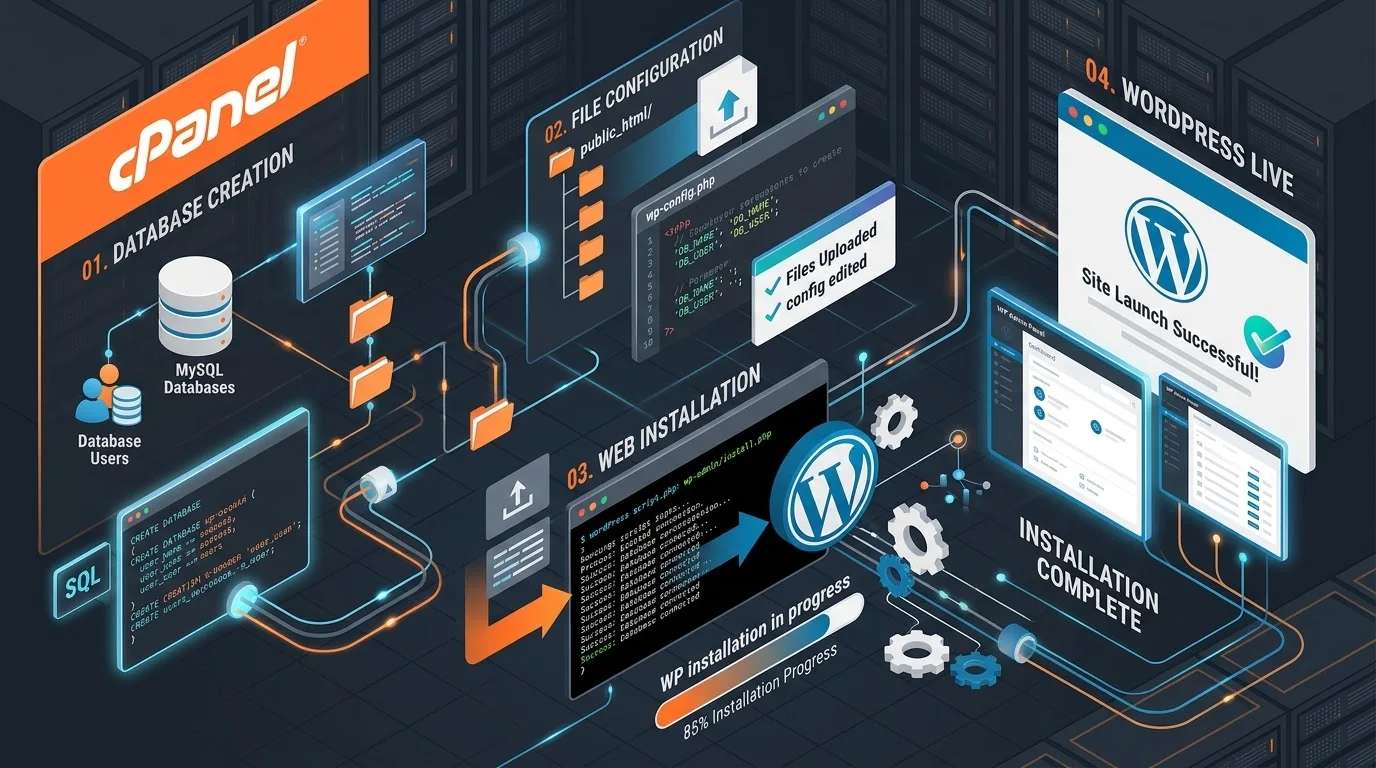
Step 1: Create a Database in cPanel
In cPanel, find “MySQL Databases” and click it. Create a new database with a memorable name (e.g., “wordpress_db”). Create a database user and assign them all privileges to the database. Note the database name, username, and password.
Step 2: Download WordPress
Visit wordpress.org and download the latest WordPress version. Extract the ZIP file on your computer.
Step 3: Upload WordPress Files via FTP
In cPanel, find “File Manager” and navigate to your public_html folder. Upload the extracted WordPress files here using FTP or cPanel’s file manager. This may take several minutes depending on file size.
Step 4: Run WordPress Installation Wizard
Open your browser and visit yourdomain.com. WordPress will detect missing configuration and show the setup wizard. Follow the on-screen prompts, entering your database information from Step 1.
Step 5: Complete Setup
Enter your site title, admin username, password, and email. WordPress will create the wp-config.php file and set up your database.
Step 6: Log In
Navigate to yourdomain.com/wp-admin and log in with your admin credentials.
Post-Installation: Essential Setup Steps
1. Verify HTTPS/SSL Certificate
Check that your site loads with HTTPS (lock icon in browser). If not, enable AutoSSL in your cPanel or contact your host. This is critical for security and SEO.
2. Update WordPress & Plugins
Log into WordPress. Check Dashboard for any available updates. Install them immediately.
3. Install Essential Plugins
- Yoast SEO (for search engine optimization)
- WP Backup (for automatic backups)
- Jetpack (for security and performance)
- WP Super Cache (for page caching)
4. Configure WordPress Settings
Go to Settings → General and verify your site URL uses HTTPS. Set your timezone and date format.
5: Set Up Automatic Backups
Backups are critical. Enable automatic daily backups either through your host’s control panel or a backup plugin.
6. Create a Strong Password Policy
Change your default admin username if possible. Use a strong, unique password. Consider enabling two-factor authentication.
Common Installation Issues & Solutions
Error: “Error Establishing Database Connection”
Cause: Incorrect database credentials.
Solution: Double-check your database name, username, and password in wp-config.php. Verify the database user has all privileges assigned. Contact your host if you’re unsure.
Error: “Fatal Error: Out of Memory”
Cause: Not enough PHP memory allocated.
Solution: Edit wp-config.php and add: define(‘WP_MEMORY_LIMIT’, ‘256M’);. Contact your host if errors persist.
Blank Page After Installation
Cause: Plugin conflict or theme issue.
Solution: Enable WordPress debug mode in wp-config.php to see error messages. Deactivate all plugins and switch to a default theme to identify the problem.
Redirect Loop Issues
Cause: HTTPS/HTTP mismatch or redirect plugins.
Solution: Verify your WordPress URL in Settings → General uses HTTPS. Check if you have conflicting redirect plugins.
Cannot Upload Files
Cause: File permissions or directory issues.
Solution: In cPanel File Manager, ensure wp-content folder permissions are set to 755. Check with your host if problems persist.
Securing Your WordPress Installation
Change Default Admin Username
Create a new admin user, remove the default “admin” user. This prevents brute-force attacks targeting the default username.
Enable HTTPS
Ensure your site uses HTTPS throughout. Most cPanel hosts offer free SSL certificates. Enforce HTTPS-only connections.
Install Security Plugin
Install Wordfence or Sucuri Security. These provide firewall protection and malware scanning.
Limit Login Attempts
Use a login security plugin to prevent brute-force attacks. Limit failed login attempts to 5 per IP.
Regular Backups
Enable automatic daily backups. Test restoration procedures quarterly.
Performance Optimization After Installation
Enable Caching
Install WP Super Cache or W3 Total Cache. Caching dramatically improves page load speed.
Optimize Images
Install Smush or ShortPixel to automatically compress images before upload.
Minimize Database
Install WP Optimize to clean up database bloat, remove spam comments, and delete old revisions.
Use a CDN
Consider Cloudflare (free tier available) to serve images and static files from servers closer to your visitors.
Next Steps After Installation
1. Create Essential Pages
Create Home, About, Contact, and Privacy Policy pages.
2. Customize Your Theme
Install and customize a professional WordPress theme. Popular options include Astra, Neve, and OceanWP.
3. Set Up Your Blog
Create your first blog post. Optimize it for your target keywords using Yoast SEO.
4. Configure Navigation Menus
Set up primary and footer menus in Appearance → Menus.
5. Enable Comments (Optional)
Configure comment moderation and spam filtering in Settings → Discussion.
Conclusion
Installing WordPress on cPanel is a straightforward process that takes just minutes using Softaculous. Whether you’re creating a blog, business site, or online store, WordPress provides the flexibility and power needed for success.
Follow the security and performance steps outlined above to ensure your site is fast, secure, and ready for visitors. If you encounter issues, don’t hesitate to contact your hosting provider’s support team—they’re familiar with cPanel WordPress installations.